Email Signature
User Guide: Setting Up Email Signature in Microsoft 365 (Outlook Web)
Objective
To assist users in manually setting up their email signature after migration from Microsoft Outlook (Desktop) to Microsoft 365 (Outlook Web).
All users are required to recreate their email signature following the company’s standard format.
Standard Guidelines
Please ensure your email signature follows the format below:
• Font Type: Arial
• Font Size: 10 pt
• Font Color: Black (default)
• Alignment: Left-aligned
• No excessive styling (avoid bright colors, multiple fonts, or large images)
Step-by-Step Setup Instructions on Microsoft 365 (Outlook)
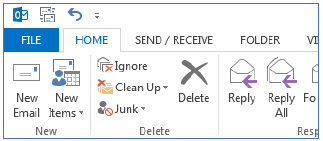
Step 1 Select File
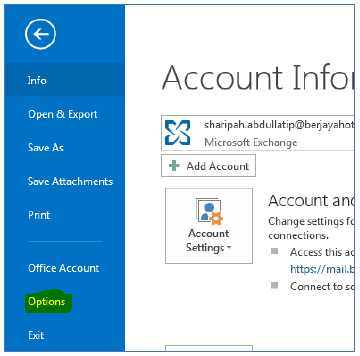
Step 2 Select Options
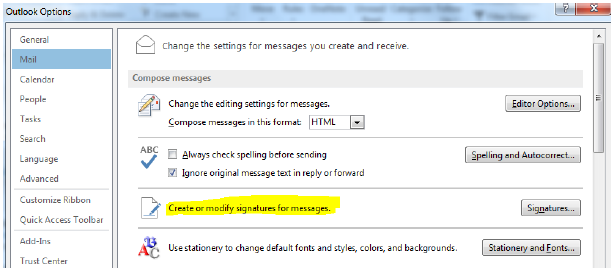
Step 3 Click Mail > Signatures
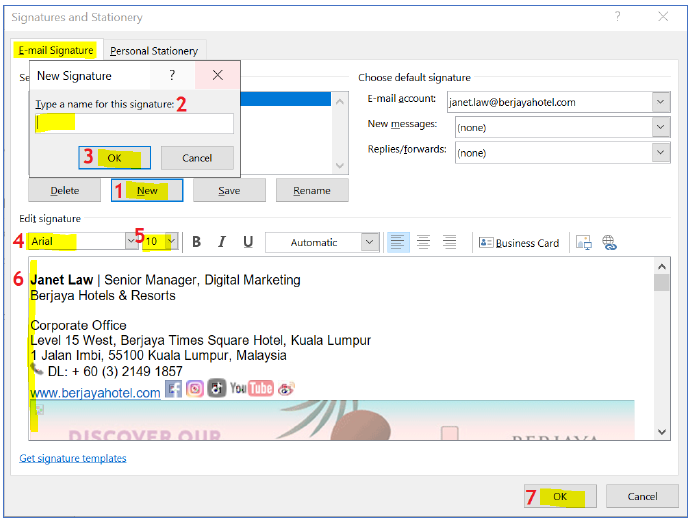
Step 4
- Click New
- Give a name for the signature
- Click OK to save
- Change to Arial font type
- Change to 10 font size
- Copy & Paste the Sample Signature Template and amend to your details
- Click OK to save
Step 5 Set Default Signature
- Select the signature you have created for your “New Messages” & “Replies / forwards”.
- Click “OK” at the bottom of the page
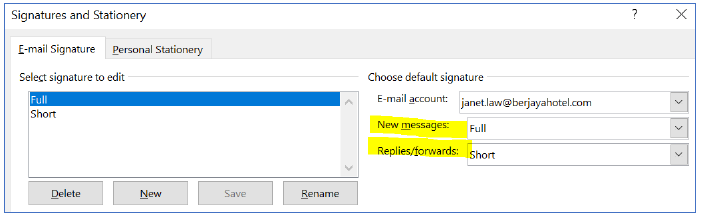
Sample Signature Format
Full signature template

Short signature template

Banner hyperlink to: https://www.berjayahotel.com/?utm_source=bhgsignature&utm_medium=email&utm_campaign=berjayahospitalitygroup
Step-by-Step Setup Instructions on Microsoft 365 (Outlook)
Step 1 Sign in to https://outlook.cloud.microsoft/mail/
Step 2 After sign in, click the Settings (gear icon) in the top right corner.

Step 3
- Click Account > Signatures
- Click “+ Add signature”
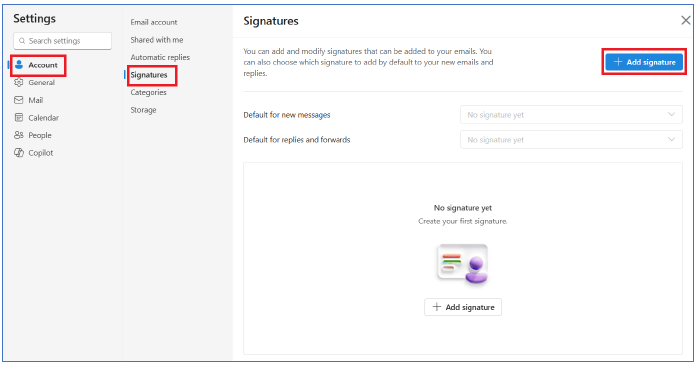
Step 4 Give a name for the signature
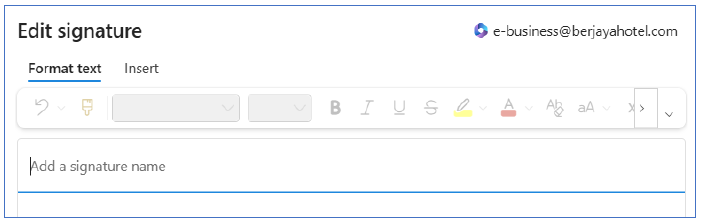
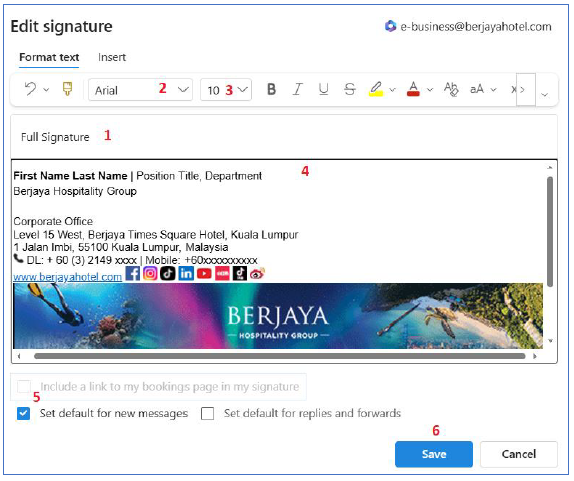
Step 5
- Signature name
- Change to Arial font type
- Change to 10 font size
- Copy & Paste the sample Signature Template and amend to your details
- Set as default for new messages
- Click Save
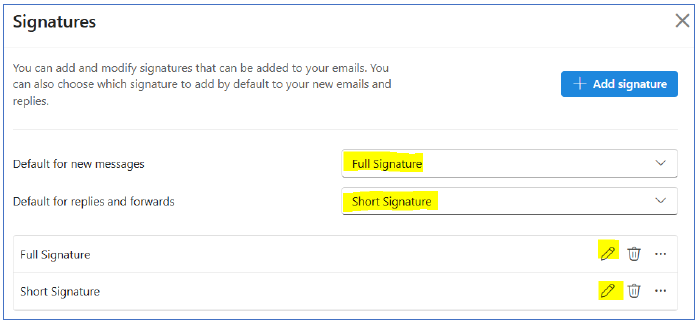
Step 6 Set Default Signature
- Select the signature you have created for your “New Messages” & “Replies / forwards”.
Important Notes
- Avoid
- Large images or banners
- Multiple colors or fonts
- Quotes or unnecessary information
- Keep the signature clean, professional and consistent.
Support
If you need assistance to setup the email signature, please contact your IT team.
End of Guide