< All Topics

iHotelier Masterclass Refresher Training

Training Recap

Project Overview

Trainer Name Bernard Poh
Training Dates 9 to 12 February 2026

9 to 10 Feb – Group A
11 to 12 Feb – Group B
Overall Feedback The training was split into 2 groups, each group taking 2 full days of training.

Majority of the users have been using iHotelier, while there are some users who only use some features of iHotelier (e.g. Reservations team). Users of both sessions had a lot of questions, and there were many discussions within the team on the features (e.g. Using of groups module in iHotelier and its impact compared to their current practices).

Not all topics were covered in details, especially those that are less relevant after discussing with individual groups. Please refer to each of the individual topics in the following rows.
Day 1 Training Recap
  1. Property Information
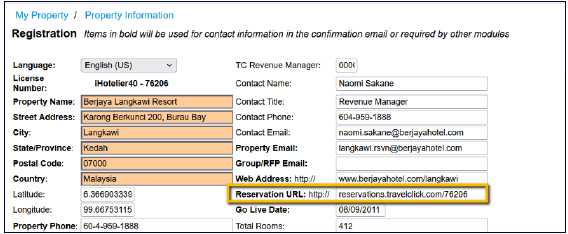
    • Property Information – explained the fields which are bold are used in confirmation email and other iHotelier modules; property to ensure the accuracy of information for these fields.
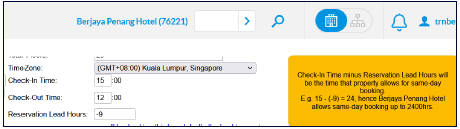
    • TimeZone/Check-in Time/Check-Out Time/Reservation Lead Hours; used to determine how late guests can book for same day bookings.
    • Airport Directions / Driving Directions / Transportation – information will populate on guest confirmation on BE5 and email confirmation. No changes made during training
    • Amenity Setup – to create Property or Room specific amenities if they are currently not available.
      • Owner column
        • System level → uploaded as standard/template amenities; cannot be deleted
        • Property level → property create specific amenities; can be deleted
        • When creating amenities, there are Room type, Property type and Both, depending on if the amenity is a property or room feature, or both.
      • Type Column
        • Room Type amenities → Assigned in Room Type setup; shows up on Booking Engine
        • Corporate team has undergone an exercise to standardize the room amenities for all properties. Should properties wish to make any updates, please check back with corporate team.
        • Property Type amenities → Assigned in Amenity Assignment
    • Amenities Assignment – Selecting of amenities to be listed on GDS
      • GDS – Amenities are not bold.
    • Properties can request for the Hotel Description Document (or HOD) from the GDS team by sending an email to GDS.tc@amadeus.com. Please refer to this document for the steps to update properties’ HOD file.
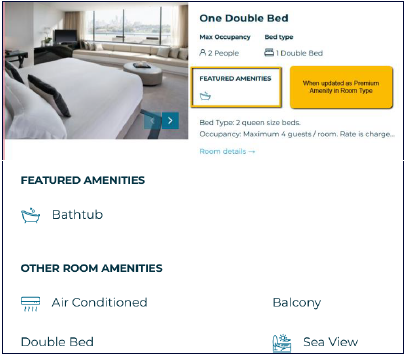
    • For premium amenities when assigned, it will look like the screenshots below:


    • Q: On Property Information page, the State/Country were abbreviated. How to know if they are being used in GDS setup for each property?

      A: All GDS information is mapped/updated separately by the GDS team. Any changes to update via email to GDS.tc@amadeus.com. The information on Property Information page is specific to iHotelier modules only.

      Q: Does the Reservation URL link need to be updated? Currently it is showing “reservations.travelclick.com/76221” but as the group has a vanity URL (i.e. reservations.berjayahotel.com), they would like their vanity URL to be shown especially if it appears on the guest confirmation email so that guests will not be confused why it is showing as “travelclick.com” instead of berjayahotel.com”. A: This is the Universal Redirector which automatically directs traffic to booking engine. The redirection is automatic and usually not observed by the website user. You may leave this as it is (i.e. reservations.travelclick.com/propertyiHotelierid).
       
      Room Inventory

      Manage Rates & Availability → Rates & Inventory → Room Types
      • Walkthrough the steps of creating a new room but it is not very common unless there are expansion plans or change in marketing strategy (e.g. Superior Rooms are now sold with and without views)
      • Discussed about Room Amenities and Room Upgrade when setting up Room Types.
      • In Room Amenities, there are some custom bedding configurations, but they are not being used currently. Understand from the corporate team that it is part of the streamlining process, but that they are aware of how to update it in Bedding Configuration to have it show up on the Booking Engine.
      • Room Upgrade is something not being used by all the properties and trainer has explained that it needs to be set up in both Room Type and Rate Plan configurations.
        • Always Offer: The options will always show when there is availability. Recommend options closer to the room selected (e.g. Standard Room selected, upgrade options are Deluxe Room, Premier Room).
        • Alternative Offer: Will only show when all the options under Always Offer have no availability. Recommend for higher room categories (e.g. Standard Room selected, upgrade options are Suites or Villas)
      Q: What is the rate showing when Room Upgrade is set up?

      A: It will show the difference in price between the selected room and the offered room types for upgrade.

      Q: Properties have an issue with updating Maximum Occupancy field as 3 because the rates updated for 3rd adult/child are subjected to any existing discounts which is not what the properties want. They have tried setting up enhancements for extra bed, but it could not be set as a mandatory option based on occupancy (3rd adult) and guests have argued that their rates should already be inclusive of extra bed when they select 3 adults. The end result: Properties are losing business from brand website to OTAs because they were not able to accurately display the rates that properties want. Is there a best practice for this?

      Suggestion: Can consider using Linked Product instead of setting up a Promotion. When setting up the same rate plan in SiteMinder, only send availability and restriction for those rate plans.


  2. Rate Plan Management

  3. Manage Rates & Availability → Rates & Inventory → Rate Plans
    • Brief walkthrough of the steps in creating a new rate plan as the team is very familiar with setting up rate plans. Some points that were shared or discussed during thesessions:
      • Rate plan categories – embedded documentation for the team’s reference
      • When selecting different Channels under Merchandising, the options will change accordingly. Some of the options to note:
        • Allow Web Room Upgrade (need to check for Room Upgrade options to appear on the Booking Engine)
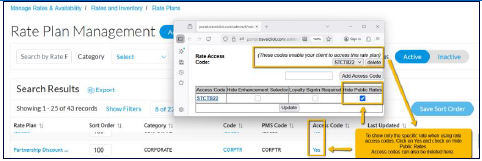
        • Rate Access Codes can be entered here for selected groups of guests to access special discounts by keying the code directly into the Booking Engine when making their booking.
          • The screenshot below shows how to hide public rates when using rate access code and also an alternative to delete the rate access code (other than directly on rate plan setup page)
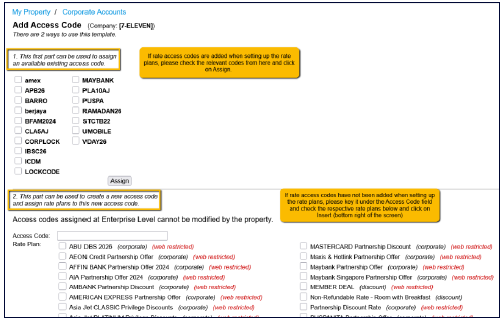
        • Rate Access Codes tied to Corporate Profiles will need to be linked in My Property → Corporate Accounts under the Add Access Code.
          • Screenshot below shows 2 parts, it is either-or (i.e. if you do Step 1, don’t need to do Step 2, vice versa)
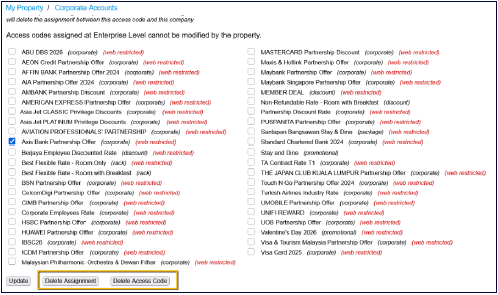
        • Corporate-linked rate access codes can be removed from the Corporate Accounts page. Select the corporate profile and click on the existing assigned code to reach the screenshot below.
          • Delete Assignment – remove the code from some of the corporate account/s but the code is still available for use
          • Delete Access Code – remove the code totally; not using the code anymore
          • ID required, TA Commissionable and Meal Plan/Breakfast will appear on GDS platforms as information only; it does not do anything like paying of commission as there was a discussion on multiple TAs attempting to claim commission from one of the hotels.
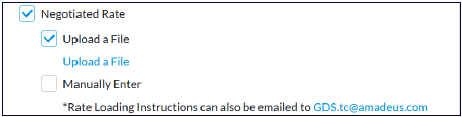
          • When GDS is selected as one of the channels, there is an option called Negotiated Rate. This field is used for corporate companies whose employees can only book hotel arrangements through Corporate TAs via GDS for compliance. When the corporate rates are accepted, there will be a Rate Loading Instruction that needs to be uploaded in iHotelier and also emailed to GDS.tc@amadeus.com to update.
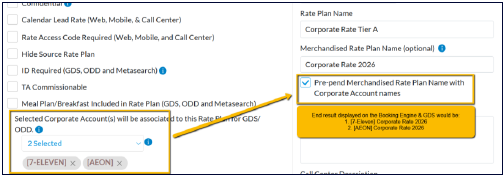
          • Merchandised Rate Plan Name field is optional, but when used it will override Rate Plan Name. A common use case is to customize for company corporate rate names, below screenshot for example.
          • GDS rate plan description only in English and maximum 47 characters; no special characters
        • Subscribing to the rate plan is only for Consortia and OTA rate plans which are both currently not applicable as there are no Consortia rates and the whole Group is using SiteMinder to manage their OTAs.


  4. Revenue Management

Training

Instructor-Led Training Overview

Trainer Name Bernard Poh
Training Dates 9 to 12 February 2026

9 to 10 Feb – Group A
11 to 12 Feb – Group B
Overall Feedback The training was split into 2 groups, each group taking 2 full days of training.

Majority of the users have been using iHotelier, while there are some users who only use some features of iHotelier (e.g. Reservations team). Users of both sessions had a lot of questions, and there were many discussions within the team on the features (e.g. Using of groups module in iHotelier and its impact compared to their current practices).

Not all topics were covered in details, especially those that are less relevant after discussing with individual groups. Please refer to each of the individual topics in the following rows.
Day 1 Training Recap
  1. Property Information
    • Property Information – explained the fields which are bold are used in confirmation email and other iHotelier modules; property to ensure the accuracy of information for these fields.
    • TimeZone/Check-in Time/Check-Out Time/Reservation Lead Hours; used to determine how late guests can book for same day bookings.
    • Airport Directions / Driving Directions / Transportation – information will populate on guest confirmation on BE5 and email confirmation. No changes made during training
    • Amenity Setup – to create Property or Room specific amenities if they are currently not available.
      • Owner column
        • System level → uploaded as standard/template amenities; cannot be deleted
        • Property level → property create specific amenities; can be deleted
        • When creating amenities, there are Room type, Property type and Both, depending on if the amenity is a property or room feature, or both.
      • Type Column
        • Room Type amenities → Assigned in Room Type setup; shows up on Booking Engine
        • Corporate team has undergone an exercise to standardize the room amenities for all properties. Should properties wish to make any updates, please check back with corporate team.
        • Property Type amenities → Assigned in Amenity Assignment
    • Amenities Assignment – Selecting of amenities to be listed on GDS
      • GDS – Amenities are not bold.
    • Properties can request for the Hotel Description Document (or HOD) from the GDS team by sending an email to GDS.tc@amadeus.com. Please refer to this document for the steps to update properties’ HOD file.
    • For premium amenities when assigned, it will look like the screenshots below:


    • Q: On Property Information page, the State/Country were abbreviated. How to know if they are being used in GDS setup for each property?

      A: All GDS information is mapped/updated separately by the GDS team. Any changes to update via email to GDS.tc@amadeus.com. The information on Property Information page is specific to iHotelier modules only.

      Q: Does the Reservation URL link need to be updated? Currently it is showing “reservations.travelclick.com/76221” but as the group has a vanity URL (i.e. reservations.berjayahotel.com), they would like their vanity URL to be shown especially if it appears on the guest confirmation email so that guests will not be confused why it is showing as “travelclick.com” instead of berjayahotel.com”. A: This is the Universal Redirector which automatically directs traffic to booking engine. The redirection is automatic and usually not observed by the website user. You may leave this as it is (i.e. reservations.travelclick.com/propertyiHotelierid).
Table of Contents